

How-to1 min read·Updated Nov 2, 2026
Add units manually or import from Excel
Create units one by one, generate a batch, or bulk-import hundreds from a spreadsheet.
Requires permission
agency.units.importOn this page
Units are what you lease or sell: apartments, shops, offices, warehouses, parking bays. There are three ways to create them.
One at a time
- Open the property and go to the Units tab, or open Units from the sidebar and press New unit.
- Fill in the unit number, type, floor, bedrooms/bathrooms, area and the asking rent or sale price.
- Save. The unit starts as “Vacant” and is ready to lease, list or reserve.
Generate a batch
On the property's Units tab choose Generate units. Give a numbering pattern (e.g. floors 1–10, units 01–04) and shared defaults; Boyoti creates them all at once. You can edit individual ones afterwards.
Import from Excel
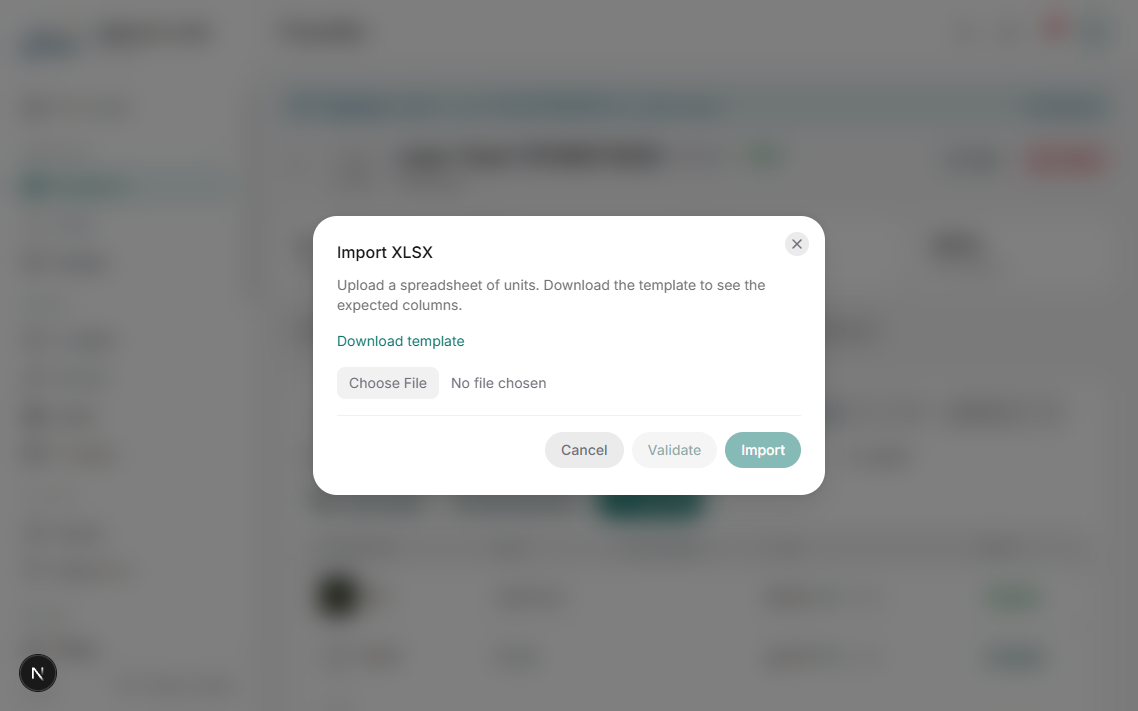
- Press Import on the Units page and download the template. It has one row per unit with columns for property, unit number, type, floor, area, bedrooms, rent and status.
- Fill the sheet (keep the header row), then upload it.
- Review the preview: rows with problems are highlighted with the reason (unknown property, duplicate number…). Fix the sheet and re-upload, or skip bad rows.
- Press Import. Existing units matched by property + unit number are updated, new ones are created.
Importing is idempotent — you can re-run the same sheet after fixing errors without creating duplicates.
Your plan has a units limit. The Units page shows how many you have used; see Usage limits and overage.
Was this article helpful?
Related articles
Add your first propertyHow-toCreate a building, villa compound or land plot, and link it to its owner.1 min readUnit statuses explainedConceptVacant, reserved, occupied, under maintenance, sold — and what changes them automatically.1 min readPublish a unit as a public listingHow-toBasicPhotos, description, price and amenities — then one click to go live on your site.1 min read