
Publish a unit as a public listing
Photos, description, price and amenities — then one click to go live on your site.
Unit listings feature
Available from the Basic plan (OMR 39.00). Sign in to your agency to see whether your plan includes it.
agency.listings.publishA listing is the public face of a unit. It appears on your website's Units page, has its own shareable link, and feeds enquiries straight into Leads.
- Open Listings and press New listing, or open a vacant unit and choose Create listing.
- Choose For rent or For sale and confirm the price; you can show “price on request”.
- Upload photos (drag to reorder — the first is the cover) and an optional video or 360° link.
- Write the title and description in both languages, or press Generate with AI to draft them from the unit's facts.
- Tick amenities and highlights, set availability date and whether to show the exact location or just the area.
- Press Publish. The listing goes live immediately; press Unpublish to hide it without deleting.
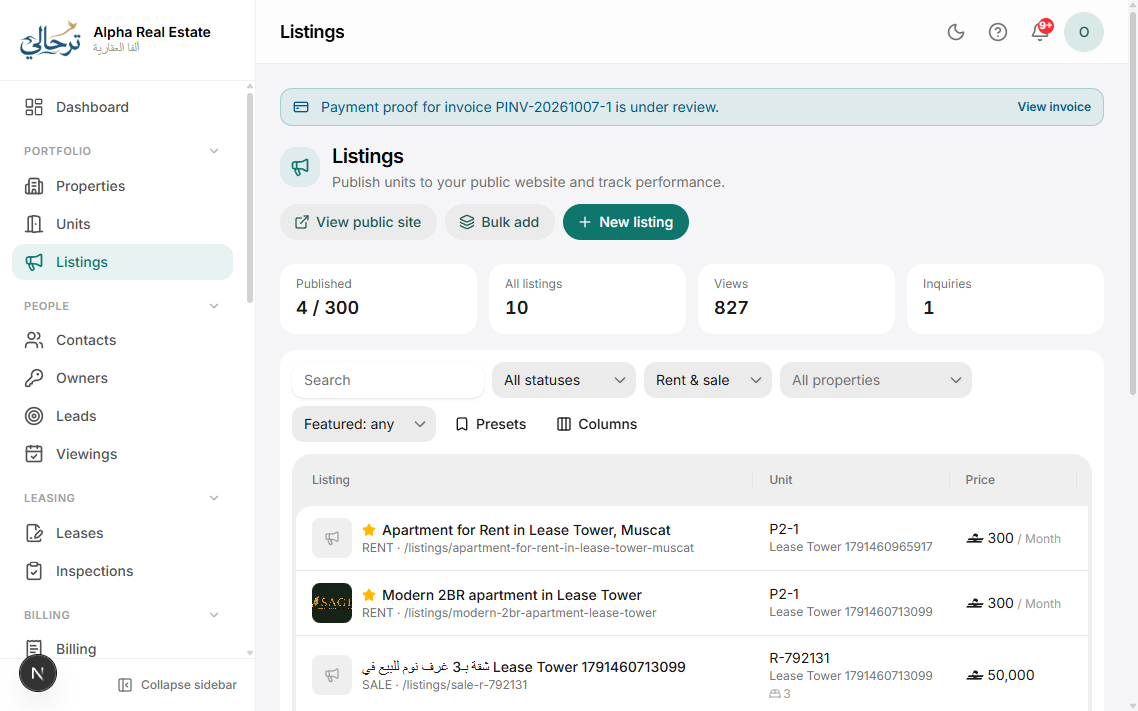
Listings are automatically unpublished when the unit becomes Occupied or Sold, and republished if you set it back to Vacant and the listing was still active.
Public listings require the Listings feature. The number of simultaneously published listings may be limited by your plan.
Each listing has a QR code and short link in the share menu — handy for signboards and brochures.
Was this article helpful?