

How-to1 min read·Updated Nov 2, 2026
Create a lease
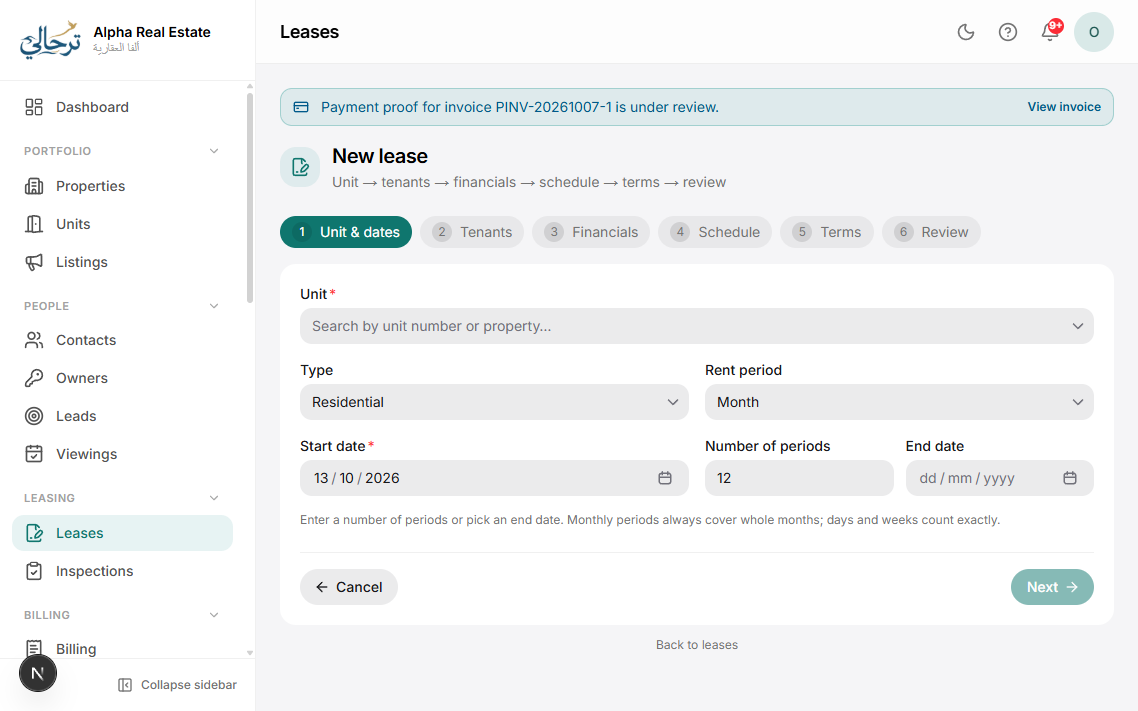
The new-lease wizard: unit, parties, term, rent schedule, deposits, cheques and terms.
Requires permission
agency.leases.createThe lease wizard captures everything needed to generate the contract PDF and the invoice schedule. You can save a draft at any step.
- Open Leases → New lease (or start from a vacant unit, a lead, or a contact).
- Unit: pick the property and unit. Occupied or reserved units are not selectable.
- Parties: choose the tenant, optional co-tenants and guarantor. Add a new contact inline if needed.
- Term: start date, duration (or end date), notice period, and whether the lease auto-renews.
- Rent: annual or monthly rent, payment frequency (monthly, quarterly, 2/4/6 cheques, annual), first due date, and extra charges (service fee, parking, furniture). Boyoti previews the full invoice schedule.
- Deposits & fees: security deposit, agency commission, admin fee — each becomes its own invoice.
- Cheques: if paying by cheque, enter cheque numbers, bank and dates; they are linked to the matching invoices.
- Terms: pick the contract template and edit clauses for this lease. Both languages are shown side by side.
- Review: check the summary and press Create lease. The lease is in “Draft” until you send it for signature or activate it.
Templates for the rent schedule (e.g. “4 cheques, first on start date”) can be saved in Settings → Billing → Defaults so agents don't re-enter them.
Nothing is invoiced while the lease is a draft. Invoices are created when the lease is activated — see How invoices are generated.
Was this article helpful?
Related articles
Lease statuses and lifecycleConceptDraft → Pending signature → Active → Notice → Expired / Terminated / Renewed.1 min readHow invoices are generatedConceptBasicLease schedules, due dates, numbering, VAT and what happens when a lease changes.1 min readEdit contract terms and clausesHow-toMaintain bilingual clause templates per contract type and override them per lease.1 min readPost-dated cheques: record, deposit, clear or bounceHow-toBasicTrack every cheque from receipt to clearance, with reminders before deposit dates and bounce handling.1 min read