

How-to1 min read·Updated Nov 2, 2026
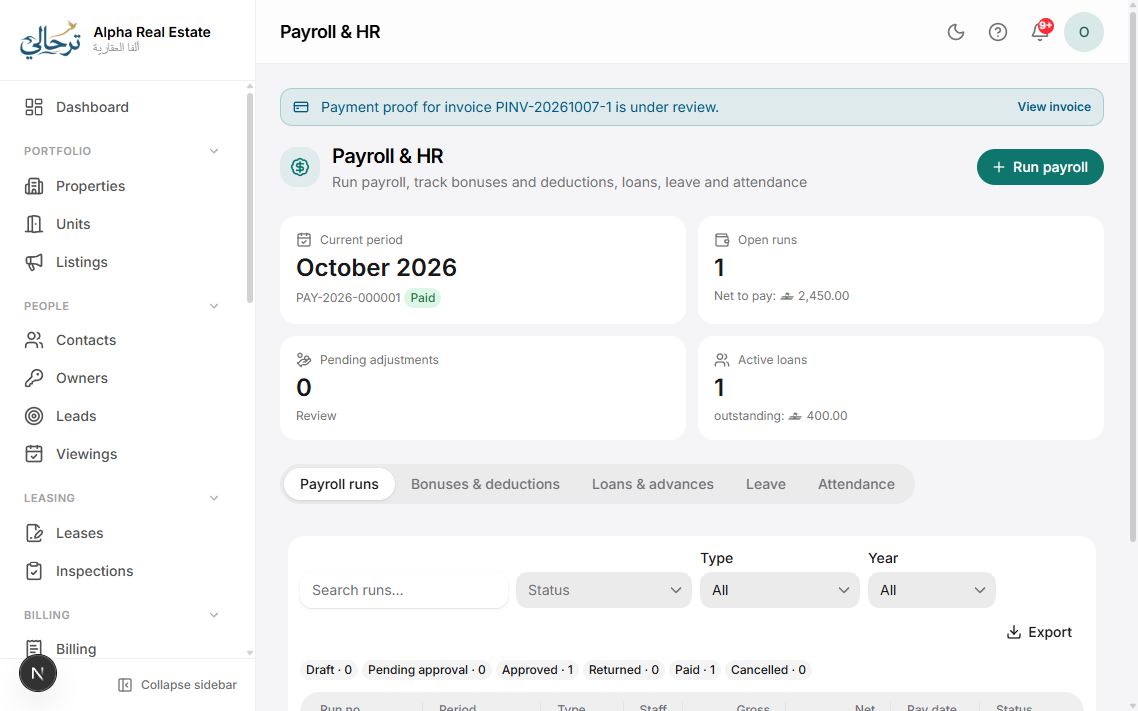
Run payroll and pay salaries
Create the monthly run from the staff list, review payslips, approve, pay from an account and send payslips.
Payroll & HR feature
Available from the Professional plan (OMR 89.00). Sign in to your agency to see whether your plan includes it.
BasicProfessionalUltimate
Requires permission
agency.payroll.run- Payroll → New run (or select staff on the Staff page → Generate payroll). Choose the month and the staff to include.
- Review the table: basic, allowances, pending bonuses/deductions (tick to include), loan instalments, unpaid leave, overtime — and the net per person. Open a row to edit.
- Press Submit for approval; an approver (agency.payroll.approve) reviews and Approves. Staff with portal access are notified only after approval.
- Press Pay: choose the account and date. Pay all, or selected payslips only (search and page through the list). Each row also has a Pay button for a single person.
- The salary expense is posted to the account; payslips become available to staff and can be downloaded right from the row.
Undo a payment
If a transfer failed or was recorded in error, a user with agency.payroll.unpay can undo the payment on a payslip or the whole run; the account transaction is reversed and the payslip returns to Approved.
Export the bank transfer file (WPS/SIF) from the run to upload to your bank.
Was this article helpful?
Related articles
Salary structures, bonuses and deductionsHow-toProfessionalDefine basic pay and allowances per staff member, and record one-off bonuses, deductions, loans and advances.1 min readPayslips: templates, self-service and sendingHow-toProfessionalBilingual payslip PDFs in several designs, visible to staff in their own portal and sent on payment.1 min readMoney accounts: cash, bank and trust accountsConceptBasicEvery payment, expense and payout is a transaction on an account — here is how to set them up.1 min readLeave requests, approvals and allowancesHow-toProfessionalDefault and special leave allowances, staff requests from the portal, edit-then-approve, and payroll impact.1 min read